Reviving Old Hardware: A Complete Guide to Building Your Own DIY NAS from Spare Parts
Overview
If you have an old desktop or laptop collecting dust in the corner, you already own the foundation of a surprisingly capable network-attached storage (NAS) server. Instead of spending hundreds on a commercial unit, you can repurpose that aging x86 system into a centralized backup hub for your family or small office. This guide walks you through turning spare parts into a functional, reliable NAS—without requiring advanced IT skills.
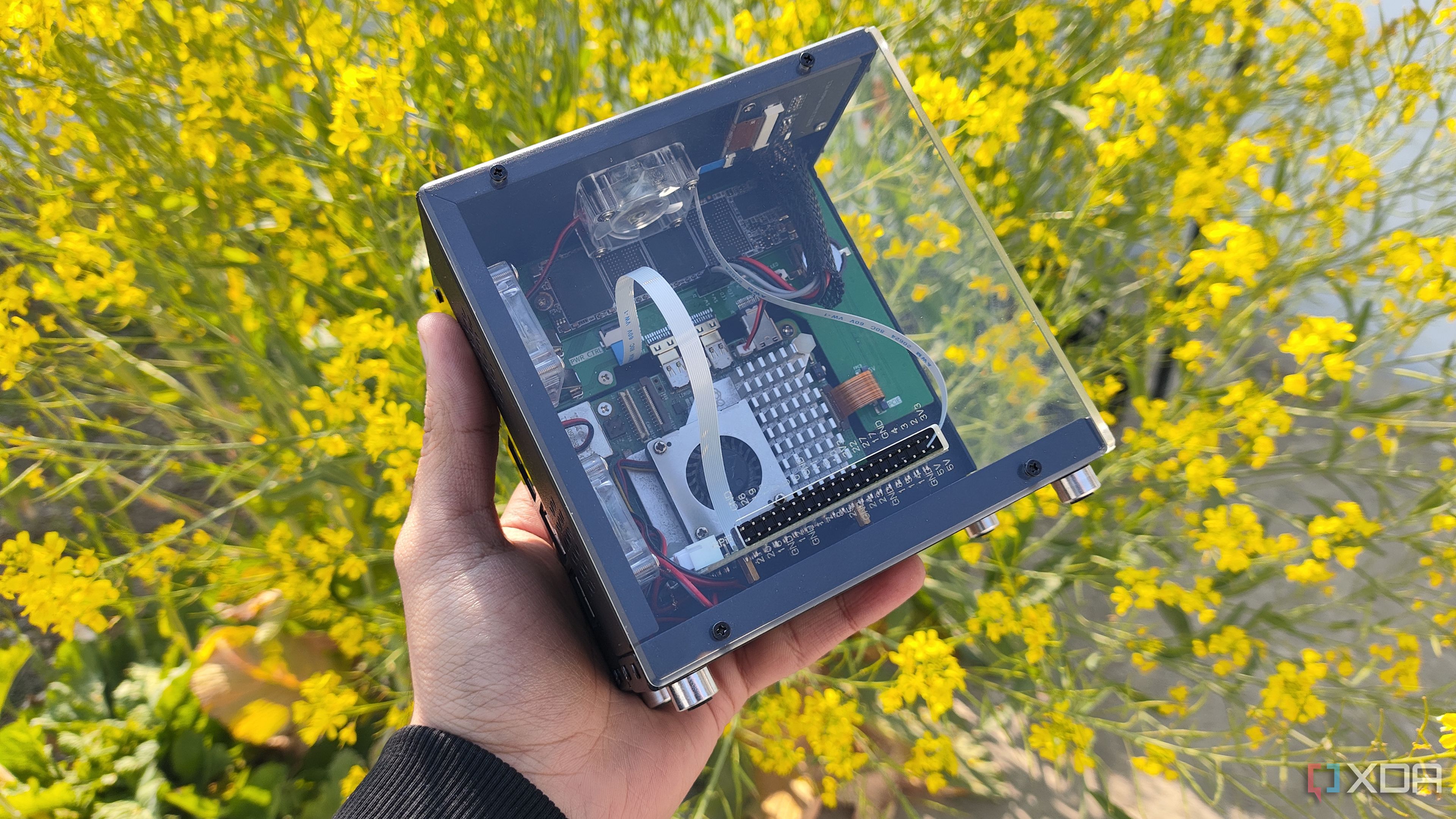
The beauty of this approach is flexibility. You are not limited to the drive bays or CPU power of a branded enclosure. With a little patience and the right software, a machine from 2012 can serve files, stream media, run containers, and even handle basic backup automation. The key is matching your hardware to your workload and avoiding common pitfalls that trip up first-time builders.
Prerequisites
Hardware Requirements
- Computer – Any x86/x64 system with at least 4 GB of RAM (8 GB+ recommended for ZFS).
- Storage Drives – At least one drive for the OS (small SSD or USB) and one or more drives for data. Avoid using the OS drive for data if possible.
- Network Interface – Gigabit Ethernet is standard; Wi-Fi is discouraged for reliability.
- Power Supply – A quality PSU (80 Plus Bronze or better) that can handle all connected drives.
- Optional but helpful: SATA controller card (e.g., HBA) for more than 4 drives, small case with good airflow, and a UPS.
Software Requirements
- Bootable USB drive (8 GB+) for installation.
- NAS operating system: TrueNAS Scale (Free, ZFS-based), Unraid (paid, flexible), or OpenMediaVault (free, Linux-based).
- Basic familiarity with BIOS settings (boot order, virtualization).
- Ethernet cable and router with DHCP enabled.
Step-by-Step Instructions
Step 1: Assess and Prepare Your Hardware
Start by reviewing your old machine. Boot it up and check the BIOS for SATA mode (set to AHCI). Verify the number of SATA ports and available PCIe slots. If you need more drives than ports, purchase a cheap SAS/SATA controller in IT mode. Remove any unnecessary components (dedicated GPU, optical drives) to save power. Clean dust from fans and heatsinks. Test each drive for bad sectors using a tool like HDDScan or GSmartControl. Discard drives with reallocated sectors above zero.
Step 2: Choose Your NAS Operating System
Your choice of OS determines features, performance, and ease of use.
- TrueNAS Scale – Enterprise-grade ZFS with web GUI. Best for data integrity and snapshots. Requires 8+ GB RAM.
- Unraid – Mix-and-match drive sizes, excellent Docker support. Paid license but user-friendly.
- OpenMediaVault – Lightweight Debian-based. Great for simple file sharing and low-resource hardware.
For this guide we will use TrueNAS Scale because it offers robust data protection and a straightforward installation.
Step 3: Install the OS
- Download the TrueNAS Scale ISO from the official website.
- Use a tool like BalenaEtcher to write the ISO to a USB drive.
- Insert the USB into your old machine and boot from it (press F12 or Del during POST).
- Follow the installer prompts: select target disk for OS (preferably a small SSD), set root password, and confirm installation.
- After reboot, remove the USB and note the IP address shown on the console (e.g.,
192.168.1.100). - From another computer, open a browser and navigate to
http://. Log in with usernamerootand the password you set.
Step 4: Configure Storage Pools and Shares
- Go to Storage → Pools and click Add.
- Select your data drives (leave the OS drive unselected).
- Choose a RAID-like layout:
- Mirror (RAID1) – two drives, one for redundancy.
- RAIDZ1 – three or more drives, single parity.
- Stripe – no redundancy, only for scratch data.
- Name the pool (e.g.,
tank) and confirm creation. - Next, create a dataset (like a folder) inside the pool for your files.
- Then go to Shares → Windows (SMB) Shares → Add. Select the dataset and configure permissions (guest access or local user).
- Apply the share. Your NAS is now visible on the network.
Step 5: Set Up Network Access and Permissions
- On your client computer, open File Explorer (Windows) or Finder (Mac).
- Type
\\192.168.1.100(Windows) orsmb://192.168.1.100(Mac) in the address bar. - Enter the credentials you set in TrueNAS (or use guest if enabled).
- Test copying a small file to confirm read/write works.
For advanced configuration, enable SSH (Services → SSH) and use rsync for scheduled backups. Example cron job for daily backup:
rsync -av /source/user/ root@192.168.1.100:/mnt/tank/backups/Common Mistakes
- Using underpowered PSU – Old power supplies may not handle the spin-up surge of multiple HDDs. Symptoms: random reboots, drive dropouts. Solution: replace with a quality 400W+ unit.
- Inadequate cooling – Packing drives into a cramped case can cause overheating. Use 120mm fans and ensure airflow over drives.
- Ignoring drive health – Assuming old drives are fine without testing. Always run a surface scan before deployment.
- Misunderstanding RAID – RAID is not a backup; it protects against drive failure but not accidental deletion. Add periodic snapshots or offsite syncs.
- Using Wi-Fi for the NAS – Wireless introduces latency and packet loss. Always use wired Ethernet.
- Not updating the firmware – BIOS updates often fix bugs with SATA controllers and power management.
Summary
Repurposing an old computer into a NAS is a rewarding project that extends the life of your hardware and gives you a private, customizable storage solution. By focusing on compatible OS choice, proper drive testing, and avoiding common pitfalls like poor cooling or weak power, your DIY NAS can serve reliably for years. The result is a low-cost, high-value backup hub that outperforms many entry-level commercial units.