Design and 3D Print Custom Steam Controller Accessories: A Step-by-Step Guide Using Official CAD Files
Overview
Valve has released the official 3D CAD files for the Steam Controller and the Steam Controller Puck under a Creative Commons Attribution-NonCommercial-ShareAlike 4.0 International license. This opens up a world of possibilities for gamers, modders, and makers. You can now design, modify, and 3D print your own custom accessories—like snap-on grips, extended paddles, ergonomic covers, or storage docks—using the exact geometry of the original hardware.
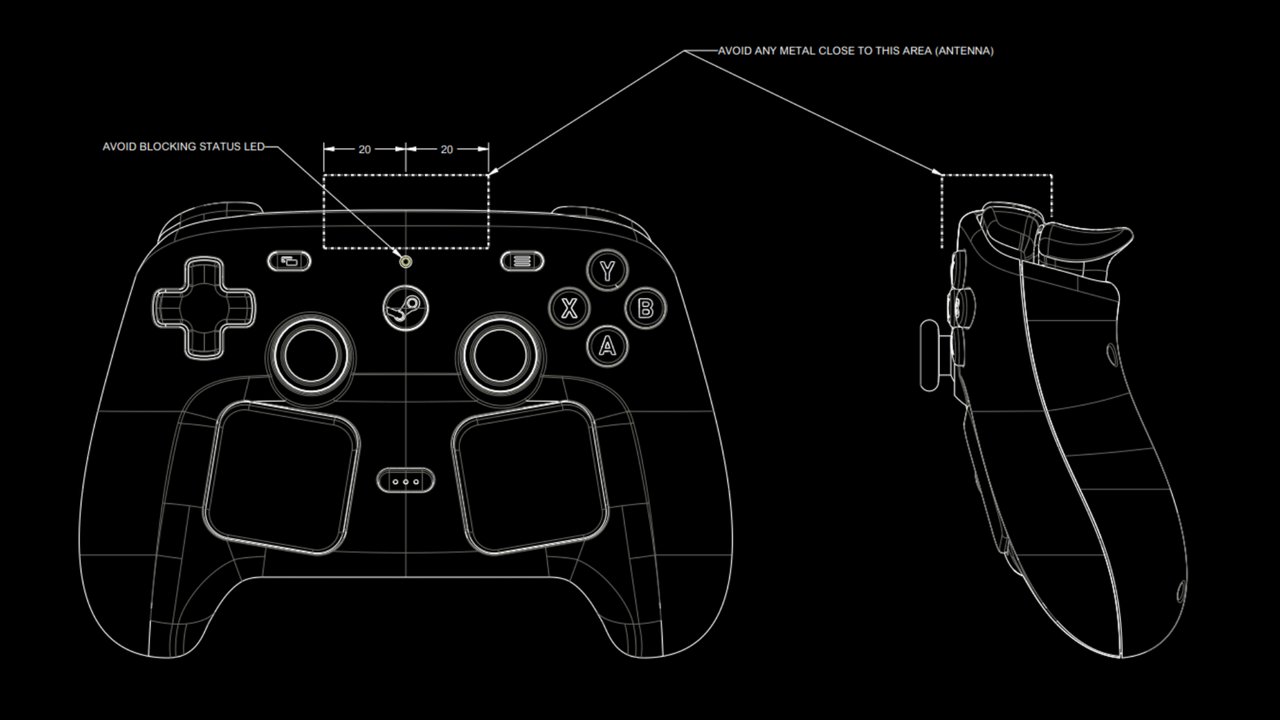
This guide will walk you through everything you need to turn these CAD files into a physical accessory. From understanding the license to choosing the right software, editing the 3D model, and printing it successfully, we cover it all. No prior CAD experience? No problem—we’ll point you to beginner-friendly tools, too.
Prerequisites
Hardware & Software Requirements
- A computer (Windows, macOS, or Linux) capable of running CAD or mesh-editing software.
- Internet access to download the CAD files from Valve’s official repository.
- A 3D printer (FDM or resin) with a build volume large enough for your intended accessory (typically 200×200×200 mm or larger).
- Filament or resin appropriate for the part’s function (PLA for prototypes, PETG for durability, TPU for flexible grips).
- Optional: Calipers or ruler to verify dimensions if you plan to modify the model.
Skills & Knowledge
- Basic familiarity with 3D modeling concepts (scaling, Boolean operations, extruding) is helpful but not mandatory.
- Ability to slice a 3D model (using Cura, PrusaSlicer, or similar).
- Understanding of Creative Commons licenses: You may use and remix the files for non-commercial purposes, but you must share any derived work under the same license.
Step-by-Step Instructions
1. Download the Official CAD Files
Valve hosts the files on their GitHub repository under the Steam Controller CAD page. The repository includes:
- Steam Controller – Full assembly in STEP, IGES, and STL formats.
- Steam Controller Puck – A standalone model of the Puck (the wireless receiver dongle).
- License file (LICENSE.txt) detailing the CC BY-NC-SA 4.0 terms.
Action: Clone or download the repository as a ZIP. Extract the contents to a folder on your computer.
2. Choose Your Software
Depending on your skill level and goal, pick one of these:
- Fusion 360 (free for hobbyists) – Best for parametric editing and precise modifications. Great for adding slots, screw holes, or custom geometry.
- Blender (free, open-source) – Ideal for organic shapes and sculpting, but steeper learning curve for precise CAD work.
- TinkerCAD (free, browser-based) – Extremely beginner-friendly. You can import STL files and use basic shapes to add or subtract volume.
- Meshmixer (free) – Perfect for repairing, cutting, and combining STL meshes without full CAD.
Tip: If you only need to add a simple feature like a hole or a bump, Meshmixer or TinkerCAD will suffice.
3. Import and Prepare the Model
- Open your chosen software and import the STL or STEP file of the Steam Controller or Puck. For STEP files, Fusion 360 or FreeCAD handle them best.
- Check the model’s scale. Valve’s files are in real-world millimeters, but confirm using the Measure tool (a button on the controller should be ~18 mm wide).
- If necessary, reposition the model so you can work on the area where your accessory will attach. For a grip extension, you might want to isolate the handle area.
- Create a cut plane to separate the accessory from the main body if you plan to print them separately. Use Boolean operations to subtract the controller shape from your new part for a perfect fit.
4. Design Your Accessory
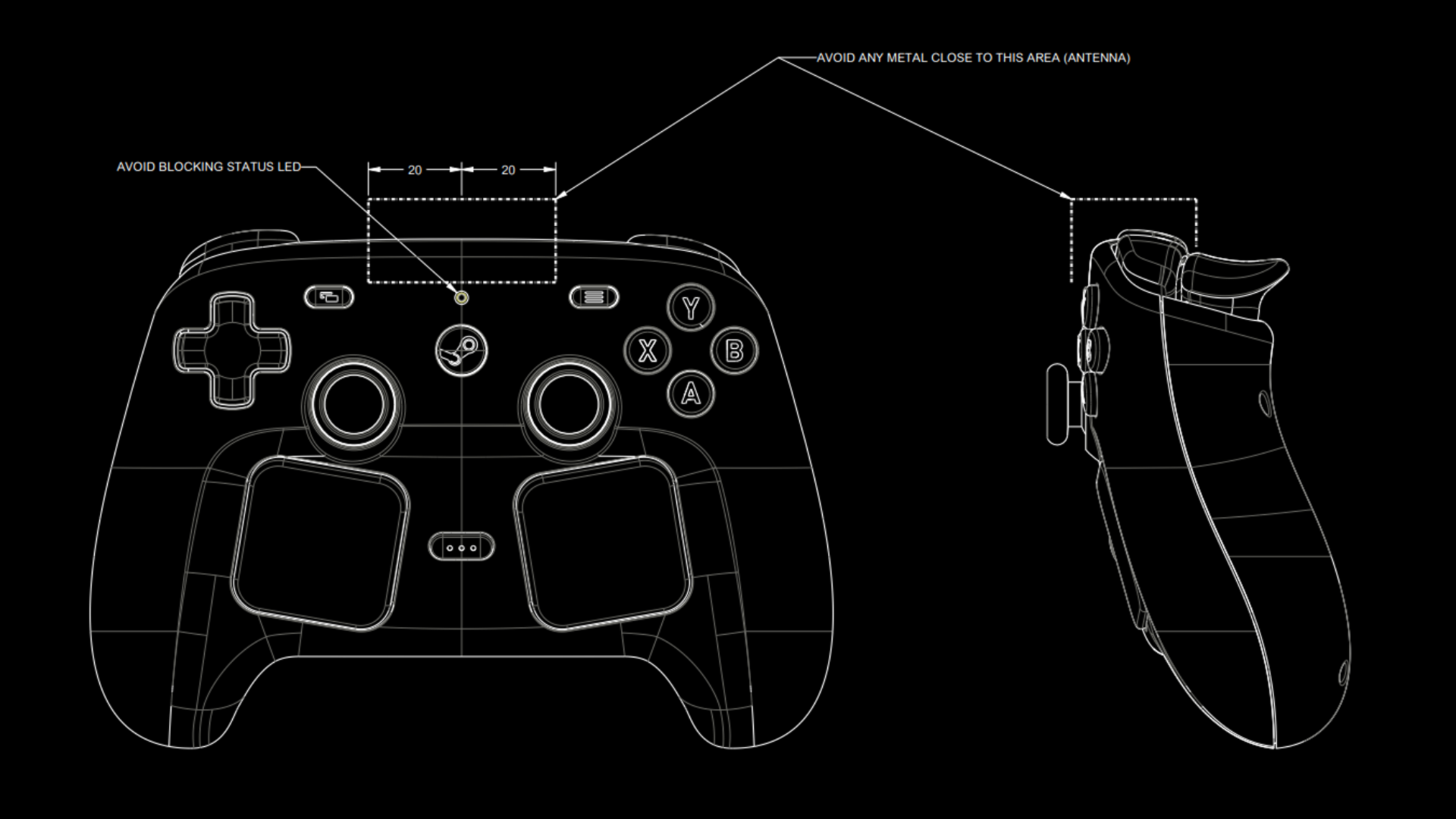
Let’s design a simple snap-on thumbstick cover as an example. We’ll assume you’re using Fusion 360.
- Create a sketch on a plane above the thumbstick.
- Project the outline of the thumbstick cap to get its exact contour.
- Extrude the sketch upward 5 mm to form a dish-shaped cover.
- Add a small rim that snaps around the stick’s edge (0.5 mm clearance).
- Use the Combine tool to subtract the controller’s thumbstick geometry from your cover, ensuring no interference.
- Modify the surface texture: add a dimple pattern using a pattern feature for better grip.
Code/param example: In Fusion 360, you could set a user parameter:
ThumbstickRadius = 9.5mm
Then reference ThumbstickRadius in your sketch so changes propagate automatically.
5. Export and Slice
- Export your finished accessory as an STL file. Use high resolution (0.01 mm chord tolerance) for detailed parts.
- Open the STL in your slicer (Cura, PrusaSlicer, etc.).
- Set your printer profile and material (e.g., PLA at 200°C nozzle, 60°C bed).
- Choose layer height: 0.2 mm for fast prototypes, 0.1 mm for smoother finish on small parts.
- Add supports if your design has overhangs >45°. For a thumbstick cover, you likely need none.
- Slice and save the G-code.
6. Print and Test
- Load the G-code onto your printer and start the print.
- Once printed, remove supports and inspect for any warping or rough edges.
- Sand lightly with fine-grit sandpaper (400+) if needed.
- Test-fit the accessory on your actual Steam Controller. It should snap on snugly without excessive force.
- If too loose, adjust the clearance in your CAD model (typically reduce the gap by 0.1–0.2 mm).
7. Share Your Creation (Optional)
Valve encourages sharing. Post your design on Printables, Thingiverse, or GitHub. Remember to license it under CC BY-NC-SA 4.0 to comply with Valve’s terms. Include photos and assembly instructions in the description.
Common Mistakes
Ignoring the License Restrictions
You cannot sell accessories made from these files unless you obtain separate permission from Valve. Always keep your designs non-commercial unless you have a commercial license.
Using the Wrong Software for the Job
Don’t use Blender for precise mechanical fits unless you’re comfortable with its snapping and measurement tools. Stick to Fusion 360 or TinkerCAD for snap-fit parts.
Forgetting Clearance
3D printers aren’t perfectly accurate. Always add 0.2–0.4 mm clearance around moving parts. A thumbstick cover that’s too tight will either not fit or wear out the stick.
Printing at the Wrong Orientation
Print parts with the layer lines perpendicular to the stress direction. For a snap-on clip, orient it so the clip’s prongs print vertically for strength.
Not Calibrating Your Printer First
An uncalibrated printer can produce parts off by 0.1 mm, ruining the fit. Run a calibration cube before attempting the final accessory.
Summary
Valve’s release of the Steam Controller and Puck CAD files under CC BY-NC-SA 4.0 empowers the community to create custom accessories that perfectly match the hardware’s contours. By following this guide, you’ve learned how to download the official files, choose appropriate software, design a simple add-on, slice it, and print it successfully. Remember to respect the license, add proper tolerances, and share your work. Whether you’re making a protective case, ergonomic grip, or a funny hat for your Puck, the only limit is your creativity—and your printer’s build volume.